Complete Video Editing Tutorial - Learn Professional Editing
Transform raw footage into stunning videos with this comprehensive tutorial. Master software, techniques, and workflows for professional video editing.
Vidione Team
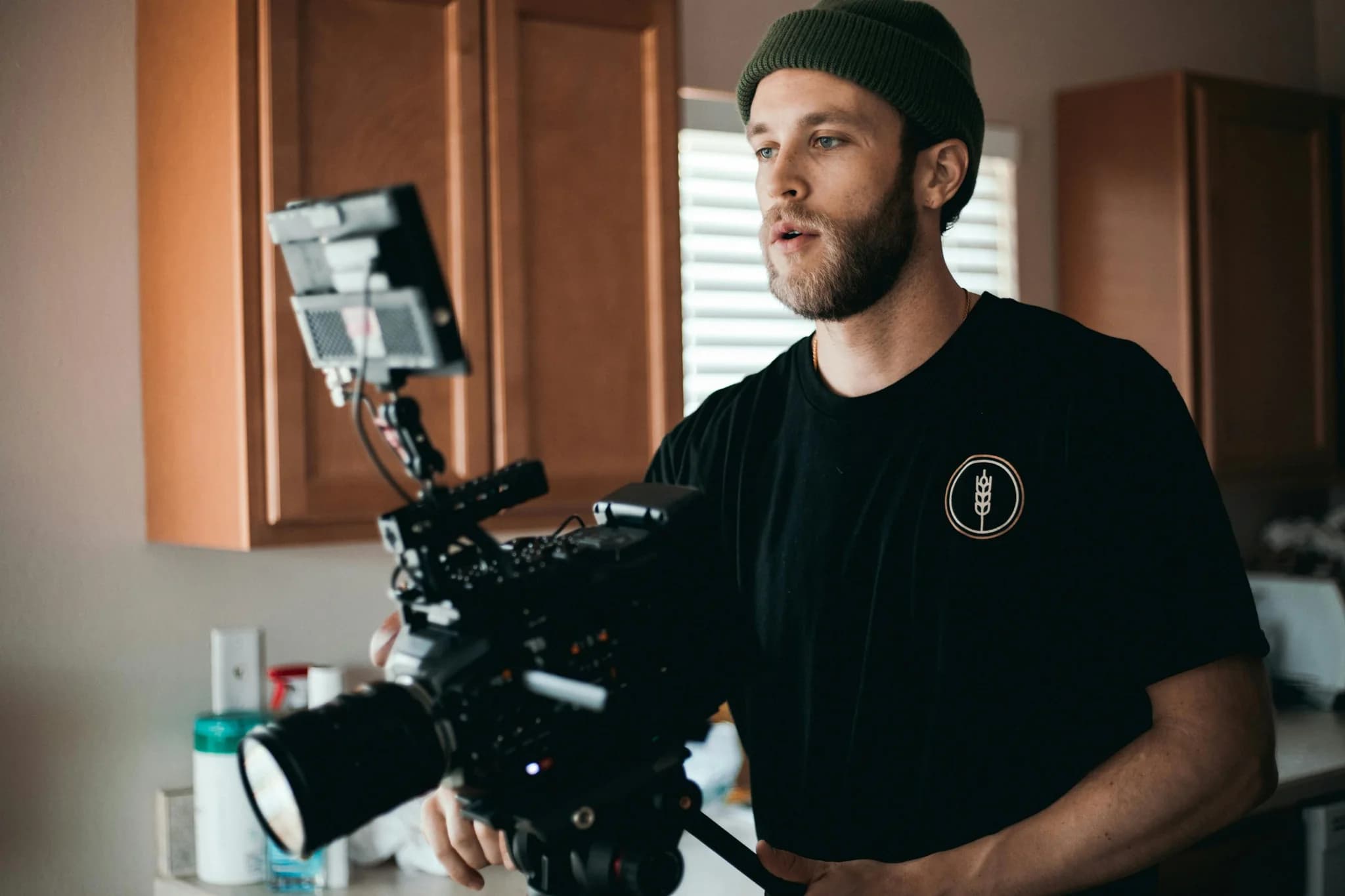
Video editing transforms ordinary footage into extraordinary stories. Whether you're creating content for business, entertainment, or personal projects, understanding video editing unlocks creative possibilities limited only by your imagination. This comprehensive tutorial guides you through the complete video editing process, from selecting software to exporting your final masterpiece.
Understanding the Video Editing Landscape
The video editing world has evolved dramatically over recent years. What once required expensive equipment and specialized training now sits accessible on standard computers. Modern software combines powerful features with intuitive interfaces, making professional-quality editing achievable for anyone willing to learn.
The demand for video content has exploded across every industry. Marketing teams need promotional videos, educators create online courses, content creators produce daily uploads, and businesses communicate through video. Learning to edit video positions you at the center of modern communication.
Selecting the Right Editing Software
Your choice of editing software shapes your entire editing experience. Different programs offer different strengths, workflows, and learning curves.
Industry-Standard Professional Tools
Adobe Premiere Pro dominates professional video production. Hollywood studios use it for feature films, television shows, and streaming content. The software provides comprehensive editing tools, supports every video format imaginable, and integrates perfectly with the Adobe Creative Cloud ecosystem.
Premiere Pro's strength lies in its flexibility. You can edit anything from smartphone footage to cinema-camera raw files in the same project. The dynamic link feature connects directly to After Effects for motion graphics and Audition for audio post-production.
Final Cut Pro X remains the preferred choice for Mac users seeking professional results. Apple optimized it specifically for their processors, delivering incredible performance even on laptop computers. The magnetic timeline prevents sync issues and speeds up basic editing operations.
Many content creators choose Final Cut Pro for its rendering speed. Projects that take hours in other software export in minutes on Apple Silicon chips. The one-time purchase price makes it economical compared to subscription-based alternatives.
DaVinci Resolve offers professional features with an unbeatable price tag. The free version includes advanced color grading, audio post-production, and visual effects capabilities that rival expensive software. Blackmagic Design created it originally for color correction, so it excels at making footage look cinematic.
Accessible Options for Beginners
iMovie provides the perfect starting point for Mac users new to editing. Apple includes it free with every Mac computer, and the simple interface teaches fundamental editing concepts without overwhelming complexity. You can create polished videos within hours of opening the program.
Camtasia specializes in tutorial and educational content. Screen recording integrates directly into the editing workflow, making it ideal for software demonstrations, online courses, and training videos. The built-in templates and callout tools streamline the creation of instructional content.
Descript revolutionizes editing through text-based manipulation. The software transcribes your video automatically, then lets you edit by cutting words from the transcript. Delete a sentence in the transcript, and that portion disappears from your video. This approach makes editing feel natural for writers and podcasters.
Building an Efficient Editing Environment
Your physical and digital workspace dramatically affects productivity and creativity. Optimizing both sets you up for successful editing sessions.
Computer hardware determines what you can accomplish. Video editing demands substantial processing power, with modern processors handling 4K footage better than older chips. RAM is equally important, with 16GB representing the minimum for comfortable editing and 32GB or more ideal for complex projects.
Storage strategy matters more than beginners realize. Use fast SSD drives for your operating system, software, and active projects. Traditional hard drives work fine for archived footage and backups but slow down your editing workflow when used for active work.
Graphics cards accelerate many editing tasks. While integrated graphics handle basic editing, dedicated GPUs significantly speed up effects rendering, color grading, and export times. Both Premiere Pro and DaVinci Resolve leverage GPU acceleration extensively.
Monitor setup enhances efficiency dramatically. Professional editors typically use two displays, with the program interface on one screen and the preview window on the other. This arrangement eliminates constant window juggling and lets you see more of your timeline simultaneously.
Comfortable seating prevents fatigue during extended editing sessions. An ergonomic chair with proper lumbar support keeps you productive longer. Position your monitor at eye level to avoid neck strain, and take breaks every hour to rest your eyes and move your body.
File organization prevents chaos as projects grow complex. Create a consistent folder structure for every project with separate folders for footage, audio, graphics, project files, and exports. Descriptive file names save time when searching for specific clips later.
Mastering Core Editing Techniques
Fundamental editing skills form the foundation for everything else you'll learn. These techniques apply across all software and all types of projects.

Strategic Cutting and Trimming
Cutting and trimming represent your primary tools for shaping narrative. Every cut makes a creative decision about what viewers see and when they see it. Professional editors make cutting decisions based on pacing, emotion, and storytelling rather than simply removing bad sections.
The 3-second rule governs modern online video. Viewers make watch-or-leave decisions within three seconds of starting your video. Open with your strongest material immediately. Save introductions, credits, and setup for later in the video.
Aggressive trimming improves most videos. Remove filler words like "um," "uh," and "like" unless they serve a specific purpose. Cut rambling introductions down to essential information. Eliminate silences longer than two seconds unless they create intentional dramatic pause.
The 80/20 rule applies perfectly to video production. You spend roughly 20% of your time capturing footage and 80% editing it. The edit is where you construct the narrative, create emotional impact, and polish the final product.
Multi-Track Editing Workflow
Modern editing requires managing multiple video and audio tracks simultaneously. Your primary footage occupies the base video track while B-roll, graphics, and text elements layer on top. Audio tracks separate dialogue, music, and sound effects for independent control.
Understanding layer priority prevents confusion. Upper video tracks cover lower tracks completely unless you adjust opacity or size. This layering system enables picture-in-picture effects, lower thirds, and graphic overlays.
Audio tracks blend together based on their volume levels. You can have dozens of audio tracks playing simultaneously if needed, though most projects use between four and eight tracks total.
Speed Ramping for Emphasis
Manipulating playback speed adds dramatic impact and solves practical problems. Slow motion, typically rendered at 50% speed, emphasizes important moments, displays detailed action, or creates dreamy atmospheres.
High-speed playback condenses time efficiently. Shooting at 200-400% speed compresses long processes into brief sequences, maintains energy during potentially boring moments, and adds comedic timing to appropriate content.
Smooth speed changes require proper source material. Footage shot at high frame rates provides clean slow-motion playback. Standard 30fps footage looks choppy when slowed significantly, while 60fps, 120fps, or higher frame rates enable dramatic slow-motion effects.
Transitions and Effects for Polish
Transitions connect your clips while effects enhance your footage. Professional editors use both sparingly and purposefully rather than as decoration.
Simple cuts remain the most powerful transition. Jump cuts maintain energy and pace, especially in vlogs and tutorial content. The cut happens instantly without drawing attention to itself, keeping focus on the content.
Cross dissolves suggest time passage or location changes. A one-second dissolve between clips implies smooth continuation while longer dissolves indicate significant time jumps. Use them intentionally rather than automatically between every clip.
Fades serve specific purposes. Fade to black signals the end of a section or creates dramatic pause. Fade from black introduces new scenes or begins your video. Fading in and out of white creates dreamy or ethereal effects.
Avoid flashy transitions unless they serve your content. Spinning cubes, page peels, and wild wipes distract viewers from your message. Save creative transitions for appropriate contexts like children's content or deliberately quirky videos.
Color correction fixes technical problems in your footage. You balance white levels so colors appear accurate, adjust exposure to recover details in shadows or highlights, and ensure consistency across clips shot in different conditions.
Color grading adds style and mood after correction. Warm orange tones create comfortable, inviting feelings. Cool blue tones suggest professionalism, technology, or sadness. Film-like looks often feature crushed blacks, subtle grain, and slightly desaturated colors.
Professional Audio Mixing
Audio quality separates amateur videos from professional productions. Viewers tolerate mediocre video quality but abandon content with poor audio immediately.
Proper audio levels follow broadcast standards. Keep dialogue between -12 and -6 decibels for comfortable listening without distortion. Background music sits much lower at -25 to -18 decibels, supporting the mood without competing with dialogue. Sound effects range from -15 to -10 decibels depending on their dramatic purpose.
Noise reduction cleans up background sounds. Most editing software includes tools that analyze and remove constant background noise like air conditioning hums, computer fans, or room tone. Apply noise reduction carefully to avoid making voices sound processed or artificial.
Audio crossfades prevent clicks and pops between clips. Even a few frames of crossfade smooths transitions between different audio clips. Music transitions typically need longer crossfades of one to two seconds for natural blending.
Room tone fills gaps in dialogue editing. Every recording space has a unique ambient sound. Recording 30 seconds of "silence" in your shooting location provides filler material for gaps created when cutting dialogue.
Export Settings for Quality Results
Export settings determine your video's final quality and compatibility. Understanding these settings prevents wasted rendering time and quality loss.

MP4 container format with H.264 codec works universally. This combination provides excellent quality at manageable file sizes. Every major platform accepts MP4 files, from YouTube and Vimeo to Instagram and Facebook.
Resolution depends on your source footage and distribution platform. 1080p Full HD remains standard for most online content. 4K provides stunning quality but creates large files that require longer upload times and may not play smoothly on older devices.
Bitrate controls the quality versus file size tradeoff. Higher bitrates preserve more detail but create larger files. For 1080p footage, 8-10 Mbps produces good quality for online distribution. 4K content needs 35-45 Mbps for comparable quality.
Frame rate should generally match your source footage. 24fps creates a cinematic feel, 30fps suits most online content, and 60fps works for gaming footage, sports, or smooth slow-motion output.
Audio export settings matter too. 48kHz sample rate with 320kbps bitrate delivers excellent audio quality. Stereo works for most content, while surround sound makes sense only for theatrical or high-end productions.
Workflow Efficiency Tips
Professional editors work faster through practiced workflows and smart techniques. These habits multiply your productivity dramatically.
Keyboard shortcuts eliminate excessive mouse movement. Learn shortcuts for your most common actions like cutting, copying, pasting, and playback control. Most professional editors use their mouse primarily for precise trimming and positioning while handling everything else through keyboard shortcuts.
Proxy editing solves performance problems with large files. Create low-resolution copies of your footage for editing, then automatically swap them with high-resolution originals for final export. This technique enables smooth editing of 4K or 8K footage on modest computers.
Frequent saves prevent devastating losses. Configure your software to auto-save every few minutes, but also manually save at significant milestones. Follow the 3-2-1 backup rule: maintain three copies of your project on two different types of media with one copy off-site.
Project templates streamline repeated work. If you create similar videos regularly, save a template project with your preferred timeline settings, commonly used graphics, and standard audio tracks already configured.
Common Pitfalls to Avoid
New editors repeatedly make certain mistakes that hurt their final product. Learning to recognize these problems early accelerates your improvement.
Over-editing exhausts viewers. Too many cuts, transitions, effects, and graphics create busy, overwhelming videos. Professional editing often means choosing restraint over flash. Clean visuals, minimal text, and straightforward editing frequently outperform heavily processed footage.
Neglecting story ruins technically perfect videos. Video editing serves storytelling, not showcasing effects. Every cut, transition, and effect should advance your narrative. Remove anything that doesn't serve the story, regardless of how impressive that element might be individually.
Ignoring audio is the fastest way to mark yourself as amateur. Invest significant time in audio recording, cleaning, mixing, and mastering. Clean audio elevates mediocre video while poor audio ruins outstanding visuals.
Continuing Your Education
Video editing skills develop through continuous practice and learning. The journey never really ends because techniques, tools, and styles constantly evolve.
Personal projects provide the best practice. Create videos for yourself, document family events, or offer free editing to local nonprofits. Each project teaches lessons and builds your portfolio with diverse examples.
Analyze professional work with an editor's mindset. Watch films, commercials, and high-quality content while paying attention to editing choices. Notice cut timing, transition usage, pacing decisions, and how visual elements combine with audio to create emotional impact.
Connect with other editors through online communities. Reddit's editing subreddits, Facebook groups, and Discord servers provide spaces to ask questions, share work, and learn from others' experiences. The editing community generally welcomes beginners and generously shares knowledge.
Begin Your Editing Journey
Video editing combines technical skill with creative expression. The tools have become incredibly accessible while the demand for quality video content continues growing across every industry. Every accomplished editor started as a complete beginner who simply decided to begin.
Ready to create professional-quality videos with AI-powered efficiency? vidione accelerates your video editing workflow with intelligent tools that handle repetitive tasks while you focus on creative decisions.
Start today by downloading editing software and importing some footage. Your first edit won't be perfect, but it represents the essential first step toward mastering video editing. The learning curve feels steep initially, but each project builds skills that make the next one easier. Your future self will thank you for starting now rather than waiting for the perfect moment that never comes.